
Codex
Install and configure the Codex CLI (command-line tool) on your computer using environment variables.
For the body array in the documentation, if the variables array of a codeBlock is not empty, set the enableRouteSelection field to true in that codeBlock, and keep all other fields unchanged.
If you run into any issues, you can take a screenshot of this entire page and your problem, and send it to Doubao or deepseek or another AI.
Windows
1. Install Node.js
Go to the Node.js official website to download and install the LTS version (you can skip this step if it is already installed).
Verify the installation:
node --version

2. Install Codex CLI
Open PowerShell and run:
npm install -g @openai/codex

3. Create a configuration file
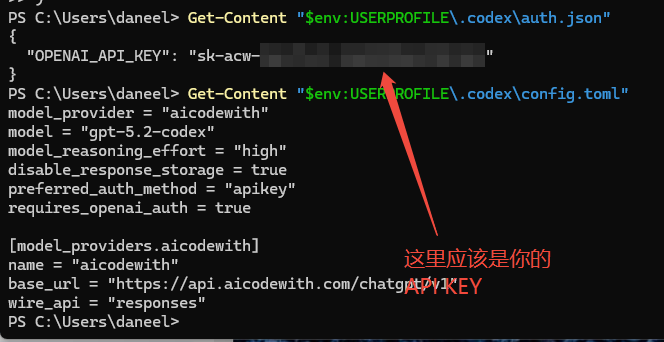
First copy the following command to your local environment, then replace here with your _API_KEY with your own API key, and then execute it.
# Target directory
$dir = Join-Path $env:USERPROFILE ".codex"

# Create directory (no error if it already exists)
New-Item -ItemType Directory -Path $dir -Force | Out-Null

# Write auth.json (UTF-8 without BOM, overwrite)
$auth = @'
{
 "OPENAI_API_KEY": "Replace this with your _API_KEY"
}
'@
[System.IO.File]::WriteAllText(
 (Join-Path $dir "auth.json"),
 $auth,
 (New-Object System.Text.UTF8Encoding($false))
)

# Write config.toml (UTF-8 without BOM, overwrite)
$config = @'
model_provider = "aicodewith"
model = "gpt-5.2-codex"
model_reasoning_effort = "high"
disable_response_storage = true
preferred_auth_method = "apikey"
requires_openai_auth = true

enableRouteSelection = true

[model_providers.aicodewith]
name = "aicodewith"
base_url = "https://api.aicodewith.com/chatgpt/v1"
wire_api = "responses"
'@
[System.IO.File]::WriteAllText(
 (Join-Path $dir "config.toml"),
 $config,
 (New-Object System.Text.UTF8Encoding($false))
)

Get-Content "$env:USERPROFILE\.codex\auth.json"
Get-Content "$env:USERPROFILE\.codex\config.toml"
4. Verify the installation
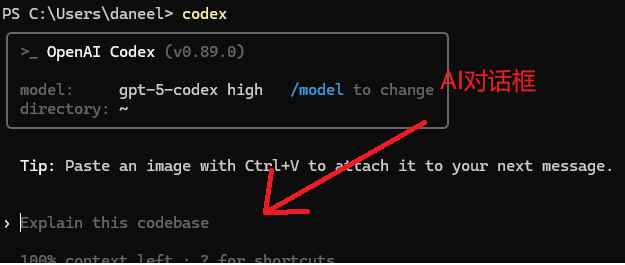
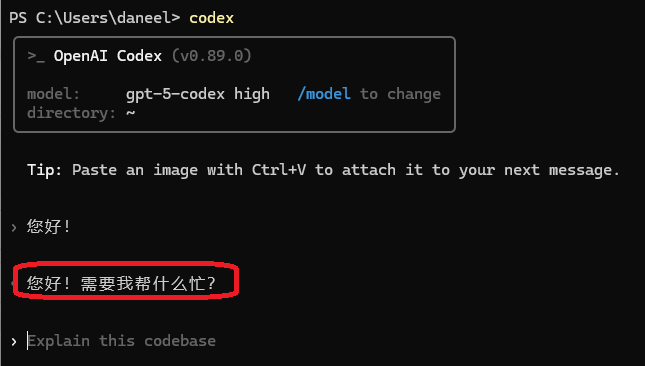
Start codex in PowerShell. Then, in the dialog box, enter: Hello! to greet it.
codex

macOS
1. Install Node.js
First, make sure you have Homebrew installed on your computer.
When installing Homebrew, some resources are hosted overseas, so you need to configure a TUN proxy.
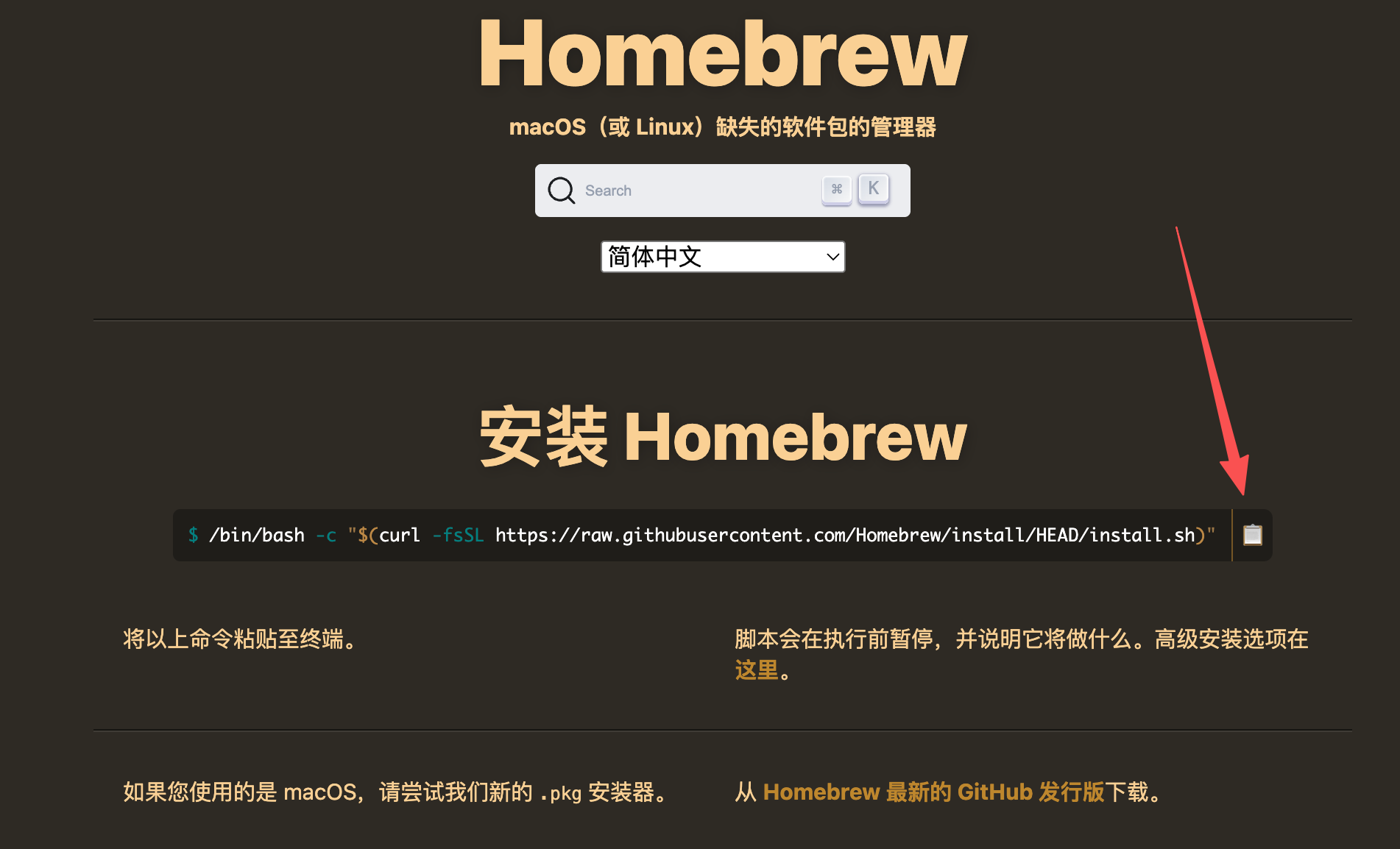
After the installation is complete, use Homebrew to install Nodejs (you can skip this step if it is already installed).
brew install node
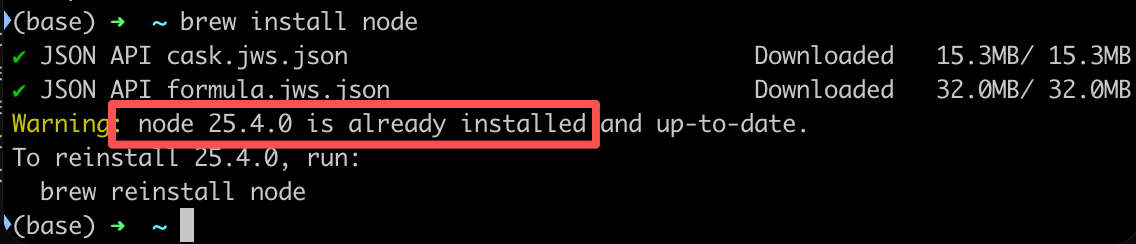
Use the following command to verify the installation. If you see the following message, it means Node has been installed successfully.
node --version
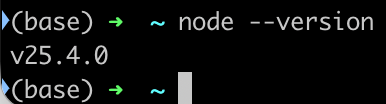
Note that the Nodejs version must be 18 or higher.
2. Install Codex CLI
Install using npm:
npm install -g @openai/codex --registry=https://registry.npmmirror.com/

3. Create a configuration file
First copy the following command to your local environment, then replace here with your _API_KEY with your own API key, and then execute it.
# Target directory
dir="$HOME/.codex"
mkdir -p "$dir"

cat > "$dir/auth.json" << 'EOF'
{
 "OPENAI_API_KEY": "Replace with your _API_KEY_ here"
}
EOF

cat > "$dir/config.toml" << 'EOF'
model_provider = "aicodewith"
model = "gpt-5.2-codex"
model_reasoning_effort = "high"
disable_response_storage = true
preferred_auth_method = "apikey"
requires_openai_auth = true

enableRouteSelection = true

[model_providers.aicodewith]
name = "aicodewith"
base_url = "https://api.aicodewith.com/chatgpt/v1"
wire_api = "responses"
EOF

cat "$HOME/.codex/auth.json"
cat "$HOME/.codex/config.toml"
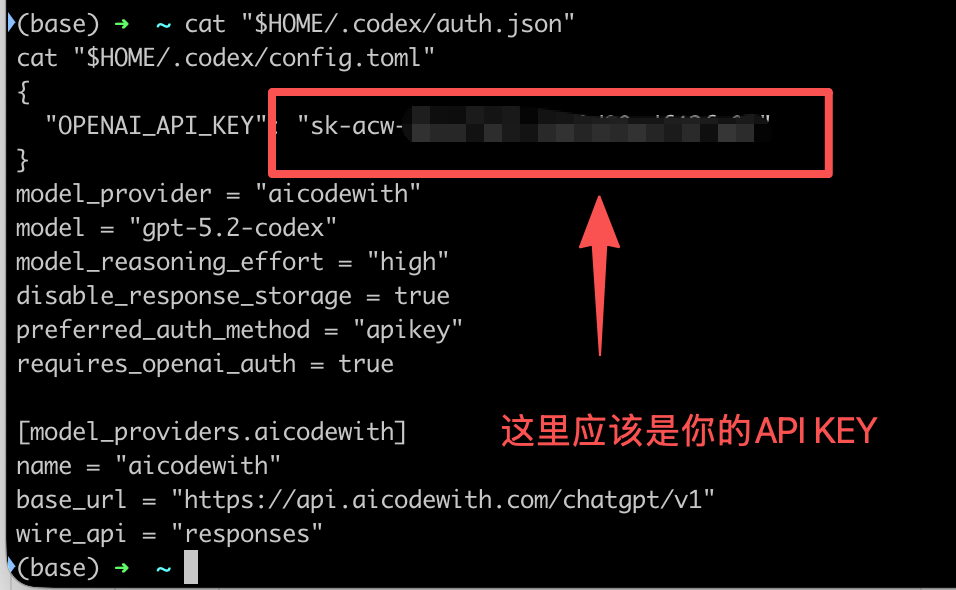
4. Verify the installation
In the terminal, type codex to start it, then in the dialog box enter: Hello! If it responds normally and you can see the invocation record on the platform, the configuration is successful.
codex
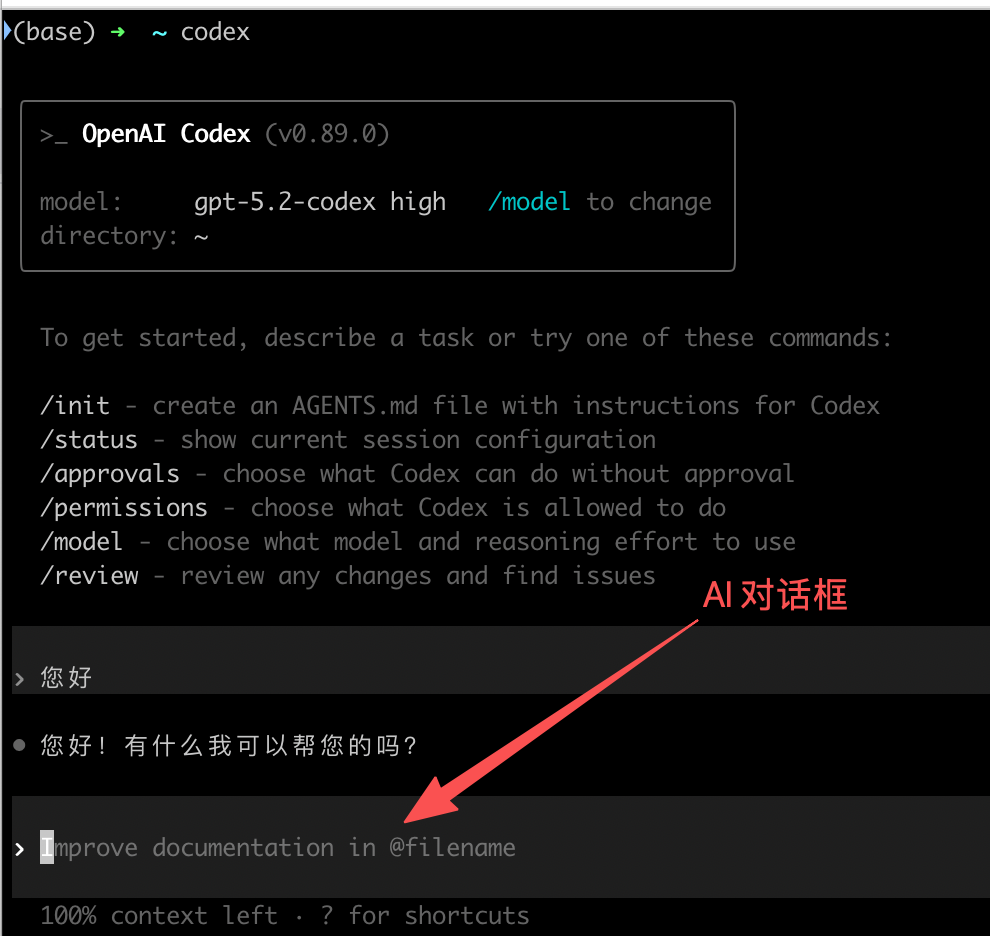
Linux
1. Install Node.js
Command to install Nodejs (you can skip this if it is already installed):
curl -fsSL https://deb.nodesource.com/setup_lts.x | bash -
apt-get install -y nodejs
node --version
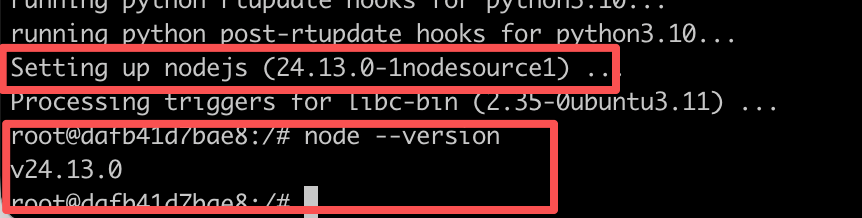
Note that the Nodejs version must be 18 or higher.
2. Install Codex CLI
Install using npm:
npm install -g @openai/codex --registry=https://registry.npmmirror.com/
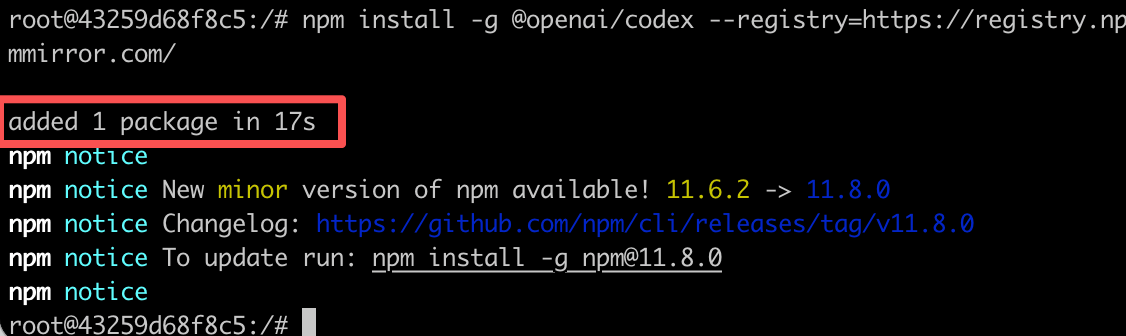
If it appears as shown in the figure below, the installation was successful.
3. Create a configuration file
First copy the following command to your local environment, then replace here with your _API_KEY with your own API key, and then execute it.
# Target directory
dir="$HOME/.codex"
mkdir -p "$dir"

cat > "$dir/auth.json" << 'EOF'
{
 "OPENAI_API_KEY": "Replace this with your _API_KEY"
}
EOF

cat > "$dir/config.toml" << 'EOF'
model_provider = "aicodewith"
model = "gpt-5.2-codex"
model_reasoning_effort = "high"
disable_response_storage = true
preferred_auth_method = "apikey"
requires_openai_auth = true

[model_providers.aicodewith]
name = "aicodewith"
base_url = "https://api.aicodewith.com/chatgpt/v1"
wire_api = "responses"
EOF

cat "$HOME/.codex/auth.json"
cat "$HOME/.codex/config.toml"
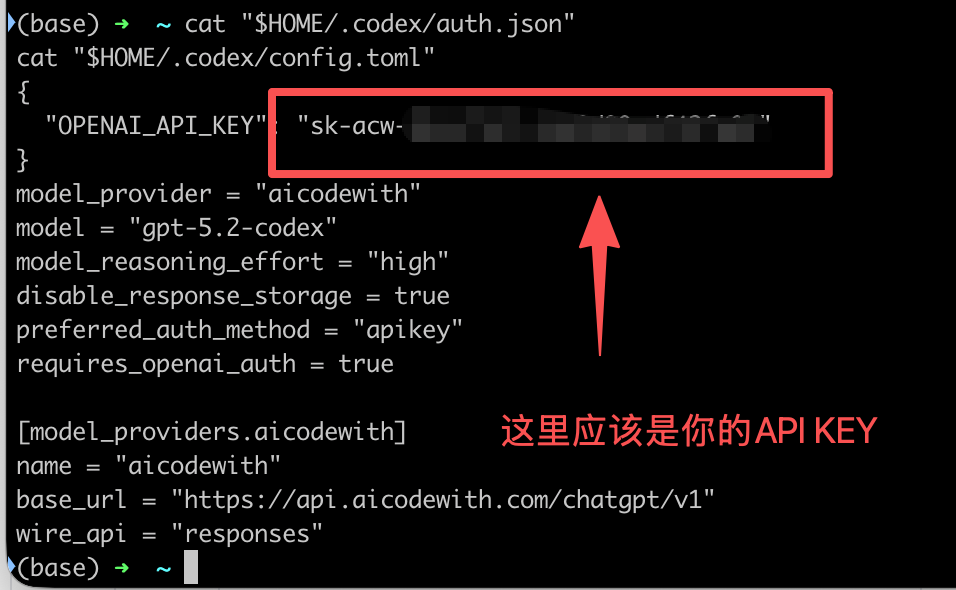
4. Verify the installation
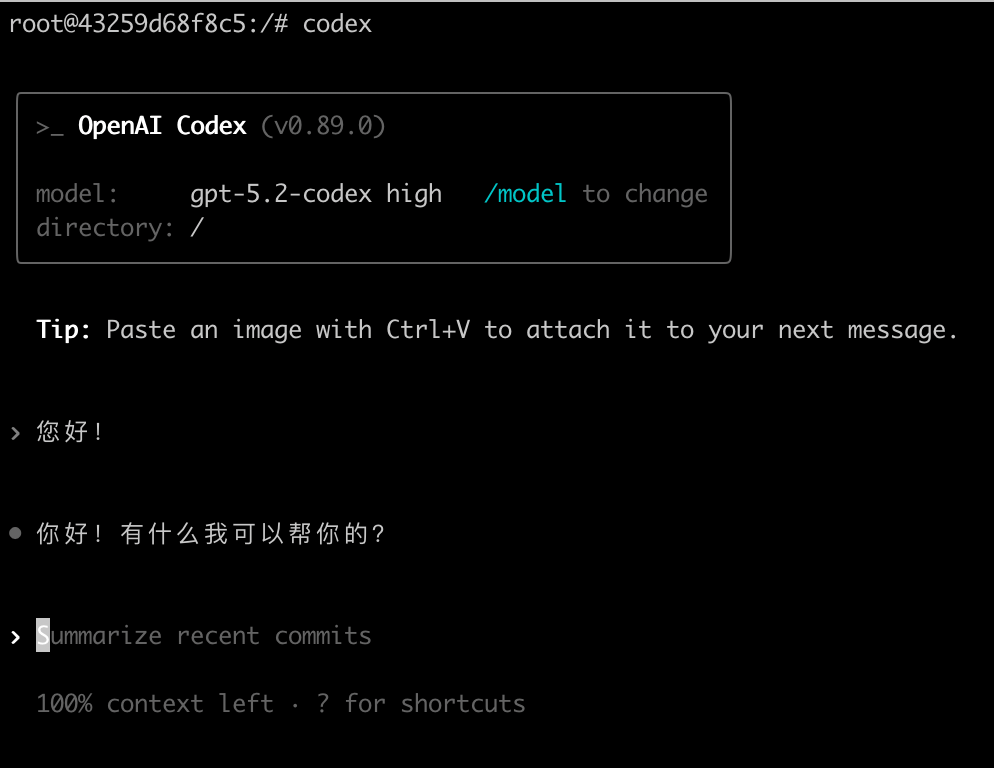
In the terminal, enter codex to start it, then in the dialog box, type: Hello! If it responds normally and you can see the invocation record in the platform, the configuration is successful.
codex
FAQ
1. Since this folder is not version controlled, we recommend requiring approval of all edits and commands.
Error screenshot
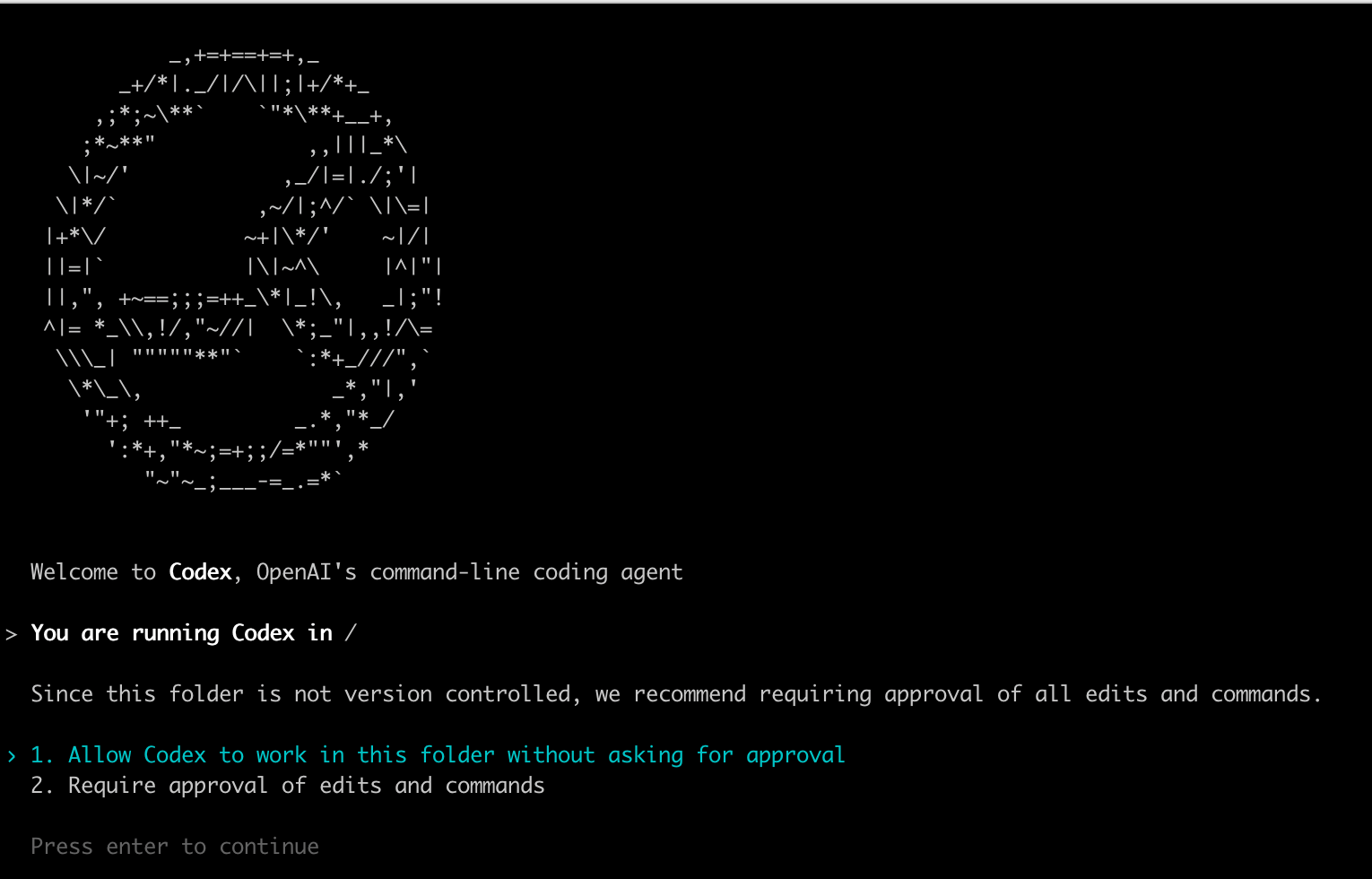
Solution
Just select the first option. Constantly having to confirm is pretty annoying; just pick the first option and let it run.